
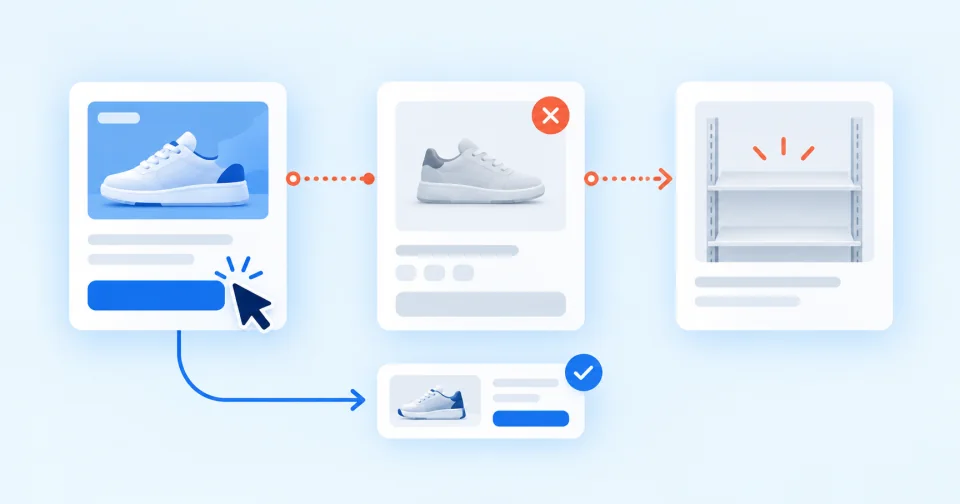
An ad should bring a customer to an offer they can use. When it points to an unavailable product with no way to order, wait or choose a meaningful alternative, the store is paying for a visit that has little chance of ending in a sale. The right response is not to switch off everything whose inventory reaches zero. It starts with naming the offer’s status and the ad’s promise accurately.
One word, “unavailable”, hides three situations
The product genuinely cannot be ordered
The item is sold out, the store is not accepting more orders and there is no credible return date. If a product-specific ad leads to that page and the page offers no matching next step, it is the clearest candidate for pausing or repair.
The product can be preordered or backordered
The customer can complete the order and sees a truthful status and realistic date before paying. Google Merchant Center distinguishes preorder and backorder for these situations. Both also require an availability date, which must be shown on the product page, and the status must match what the customer sees during checkout.
Zero physical stock does not necessarily mean the ad should stop. What matters is whether the offer really accepts orders, whether the date is not misleading and whether the longer wait makes commercial sense.
Unavailability is part of the range
Selling out can be natural for unique, collectible or deliberately scarce goods. An ad for a specific item should not continue to imply that it can be bought after the sale. It may be useful to change both message and destination to a comparable item, an alert for new arrivals or a relevant selection. What the ad promises before the click has to be true.
Three places must agree for product ads
For Shopping products, Google expects Merchant Center availability to match the landing page and the ability to complete the order. A mismatch can lead to an account warning or product disapprovals, and it confuses customers who see a different status after clicking.
Review these together:
- feed: the correct
in_stock,out_of_stock,preorderorbackordervalue; - product page: the same status, price and clear ability to order;
- basket and checkout: the product can actually be purchased on the terms shown.
Automatic item updates can help Google correct some temporary inconsistencies using structured data on the website. Google explicitly says they are not a replacement for regular product-data updates. Fixing the source is therefore more important than relying on the safety net.
Merchant Center also provides a pause attribute for short commercial decisions, but it serves a different purpose from out_of_stock. Google intends it for products that are in stock and recommends pausing for no more than 14 days. A product the store temporarily cannot sell should be marked out_of_stock.
Fixing the product feed is not enough for other ads
A search, display or social ad can link straight to a product outside Merchant Center. Changing feed availability will not switch that ad off. You need its final URL, the landing-page state and the promise in the copy or creative.
The rules say so directly: the Google Ads misrepresentation policy does not allow ads to promise products or offers that are unavailable or not easily found on the destination. So the question is not only whether the page works, but whether the customer finds what the ad promised.
Choose one response for each affected ad:
- pause when the specific product cannot be bought and there is no matching next step;
- repair the availability or page when the store accepts orders but the feed, website or checkout says otherwise;
- change both ad and destination when a genuinely comparable alternative is available;
- keep it running when this is a truthful preorder or backorder and the ad does not promise immediate availability.
Find ads that lead to unavailable products
Korzaro connects paid interest with availability and shows which items deserve review first.
A substitute must preserve the reason for the click
Redirecting a sold-out item to a category page is easy but not always honest. Someone who clicked on a specific model, size, material or price may not want a general list of dozens of products. The more precise the ad’s promise, the more precise the replacement must be.
An experiment in an online grocery store compared three ways of handling sold-out items. When shoppers discovered the stockout only when trying to buy, they were confused and bought less in the category. A suggested replacement, by contrast, made the choice easier, slightly reduced cancelled purchases and substantially raised the chance that shoppers picked that item. The effect disappeared when the replacement was more expensive. The result comes from one type of store, but the direction is clear: show unavailability up front and offer a substitute that does not look like a price trick.
Use three checks:
- Does the alternative meet the same primary need as the original product?
- Does it match the attributes the ad explicitly promised?
- Will the customer immediately understand why a different offer is shown?
If any answer is no, change the ad message together with the destination or pause the ad.
Measure review priority, not an invented precise loss
A useful view connects paid clicks or cost with periods when the product was observed as unavailable. Review the products with the largest volume first rather than treating every zero-stock item equally.
Track in particular:
- paid clicks and cost during the observed unavailable period;
- product-detail visits from paid and organic sources separately;
- movement to a relevant alternative and its completed orders;
- time between an inventory change and the feed, page or campaign repair.
Keep the time boundary explicit. If Korzaro or the store captures inventory once a day, it cannot know with certainty whether the product was unavailable at the exact moment of every click. Some visits may have arrived before the stockout or after replenishment. Some customers may also have bought a substitute or signed up for an availability alert.
Do not label the result as a precise “ad loss”. It is a well-prioritised queue of situations where a person should review the destination, promise and commercial response.
What to do now
- Connect ad destinations to products. For active campaigns, identify the final URL and matching product or offer.
- Separate types of unavailability. Distinguish a genuine stockout, a truthful preorder or backorder and deliberately scarce goods.
- Rank the impact. Start with unavailable products carrying the highest paid clicks or cost during the observed period.
- Choose one response. Pause, repair or redirect the ad and its message to a matching alternative. Do not change only the URL.
- Check the whole chain. Verify the feed, product page and checkout, then monitor how long the campaign takes to reflect the change.
Korzaro separates paid and organic interest in unavailable products and helps rank the items where a review matters most. Daily snapshots do not prove the exact status at each click, and the system cannot decide whether a particular alternative preserves the campaign’s promise without knowing its context. The last decision therefore remains human.